Program your lights
like you program your music.
Paint colors on a timeline, lock them to the beat, and DMXRoll runs your lights — over Art-Net, sACN or a USB DMX interface. Built by a gigging musician, for musicians.
From song to show in minutes.
Paint light in time.
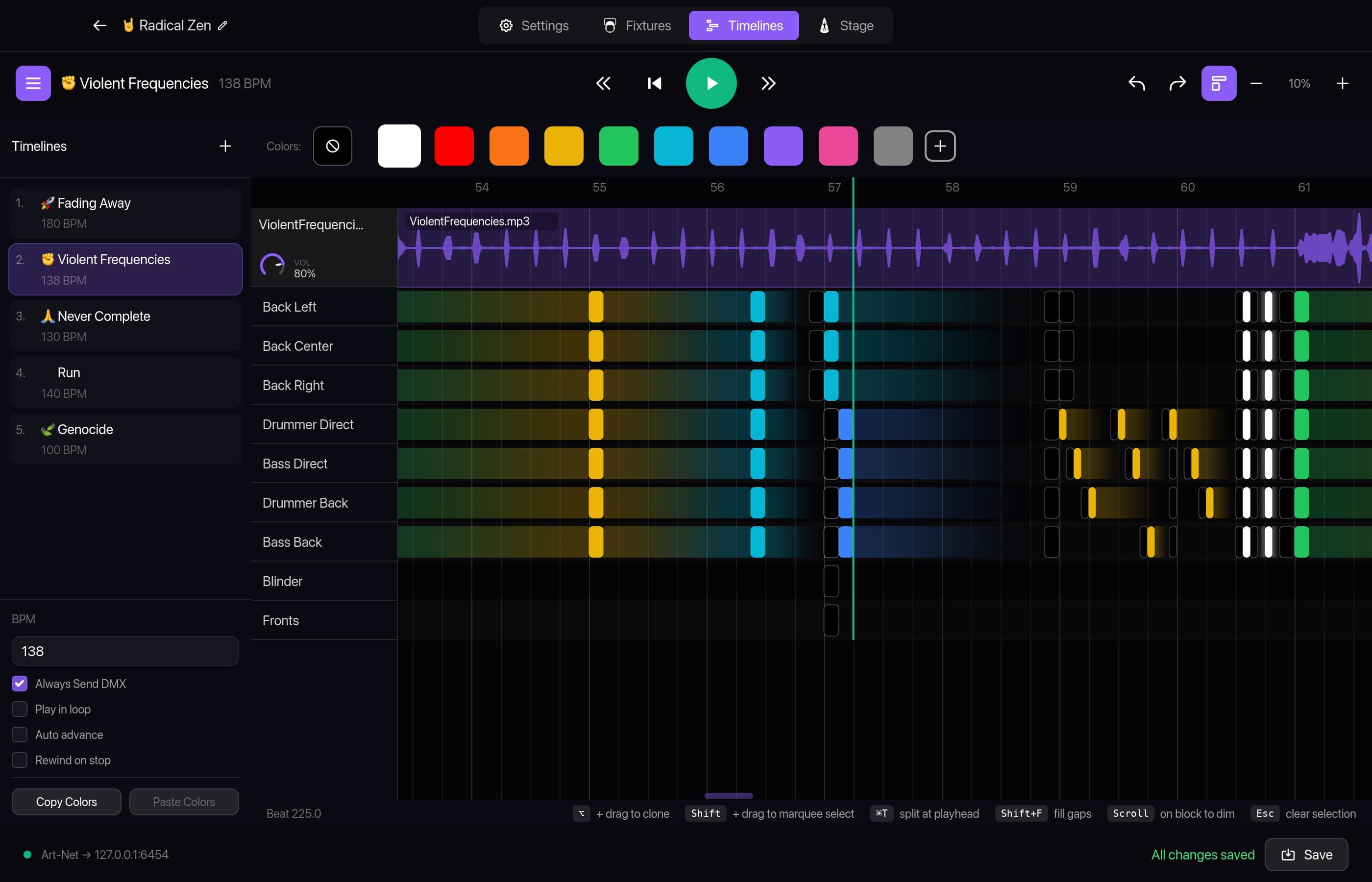
Every light gets its own track. Pick a color, drag along the track, and that light holds the color for those beats. Change the tempo and the whole show follows — blocks live in beats, not seconds.
Hover the numbers to explore
Edit like MIDI clips
Draw, select, move, copy and resize blocks. Copy, paste, duplicate, split and fill gaps — everything undoable.
Fast hands
0–9 pick colors, G snaps, Space plays, Tab jumps to the next song.
Edit while it plays
Changes reach the lights instantly — even a new tempo doesn't stop the show.
Fades come for free.
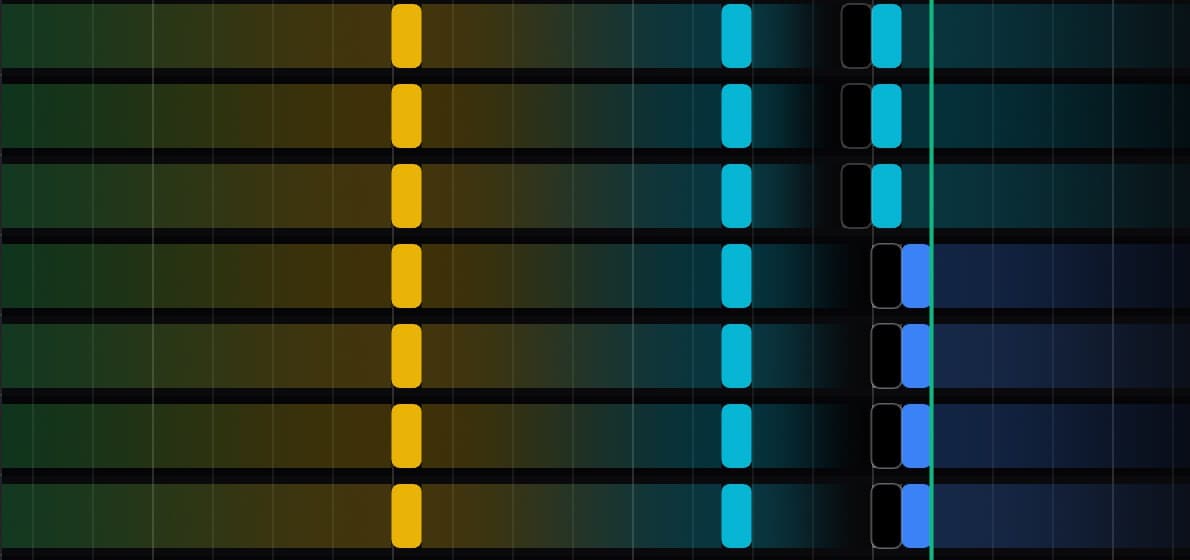
Leave a gap between two blocks and DMXRoll fades the color and brightness across it — smoothly, at up to 60 frames per second.
- Scroll over a block to dim it, 0–100%.
- Drop a Black block wherever a light should go dark.
- RGB, white and amber channels are calculated for you.
Locked to the beat.
Drop in your song — MP3, WAV, AIFF, FLAC and more. DMXRoll draws the waveform, detects the tempo and plays it in sync with your lights, on the audio output you choose.

Tempo detection
DMXRoll suggests the BPM it hears. Accept it or type your own.
A whole setlist
Loop a song, or auto-advance to the next one and keep playing through the set.
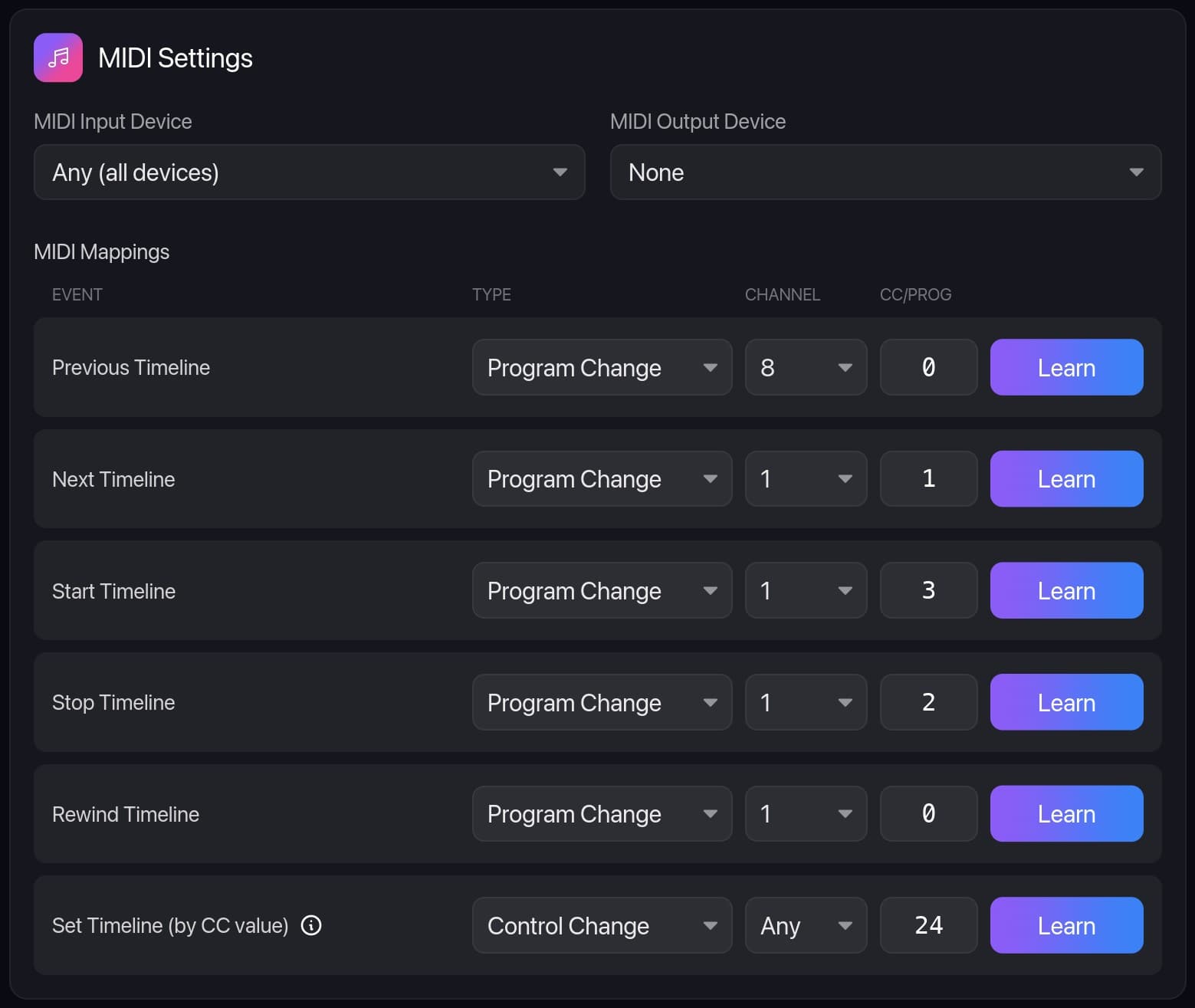
Run it from MIDI
Next, previous, start, stop or jump to any song from your controller or backing-track rig.
Introduce your lights.
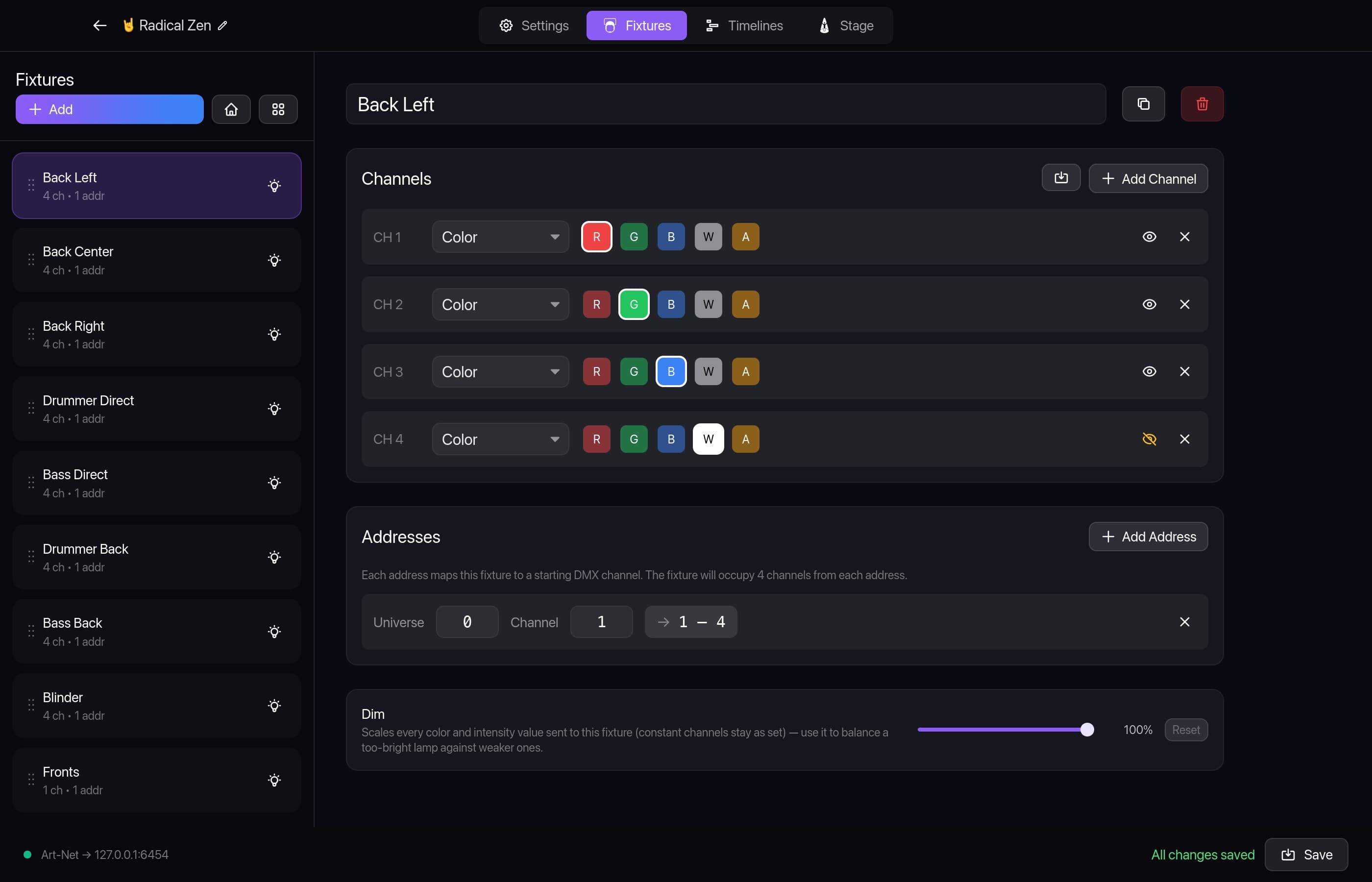
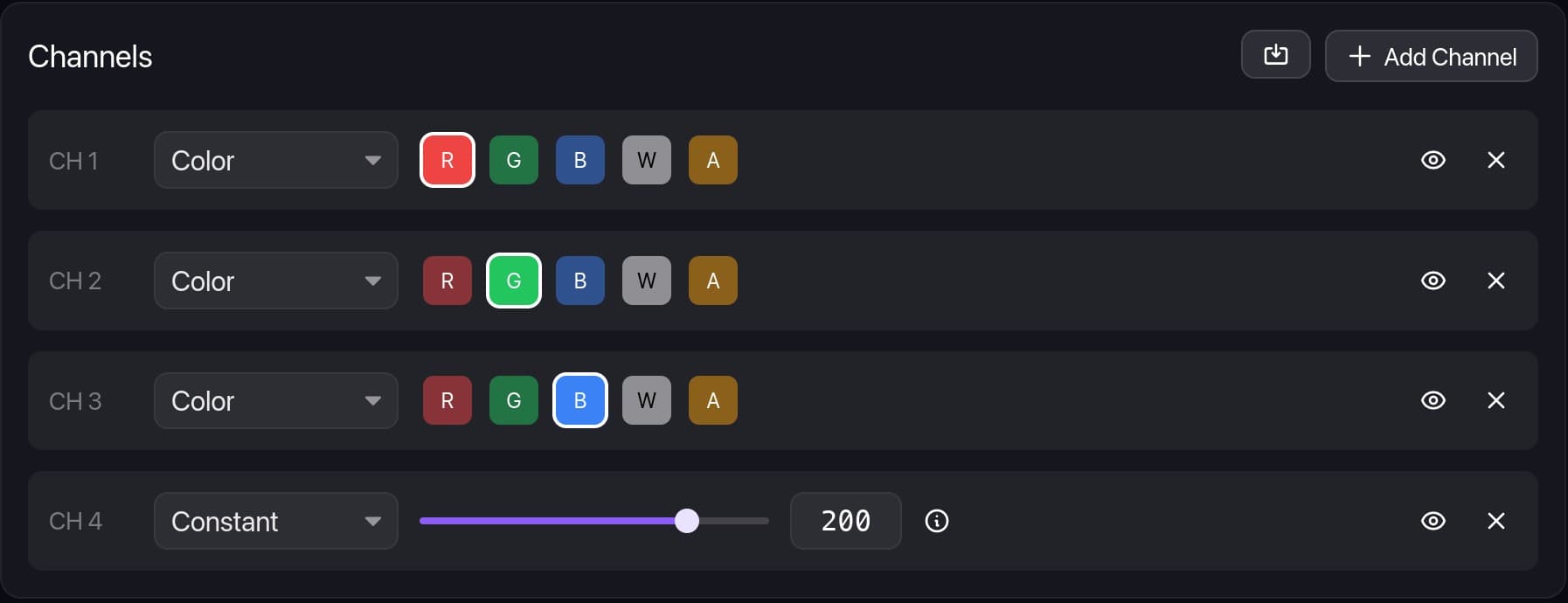
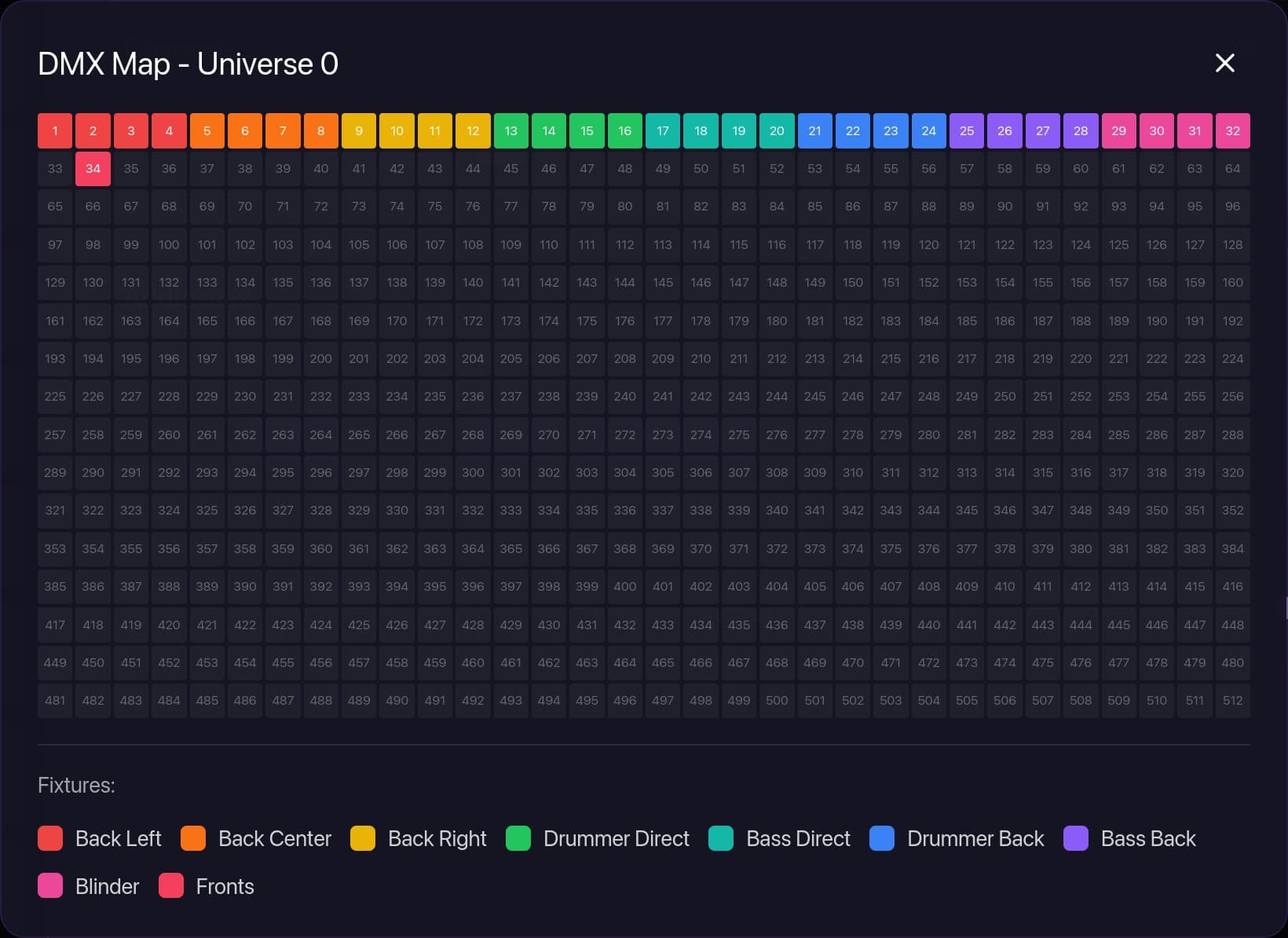
Start from an RGB, RGBW or single-color template, or build any light channel by channel. Tell DMXRoll where it lives in DMX — it does the math and warns you before two lights clash.
Hover the numbers to explore
See it before the gig.
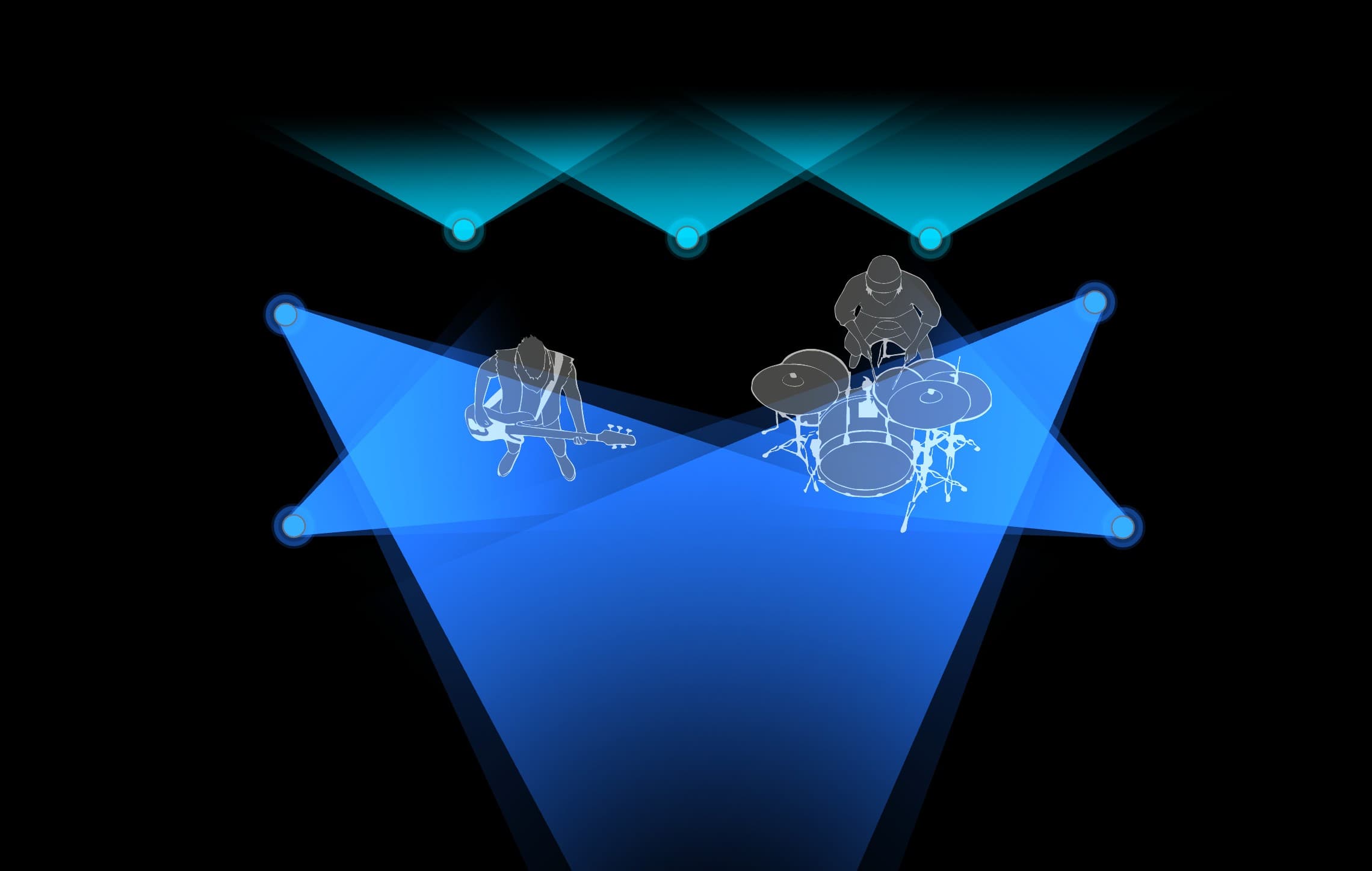
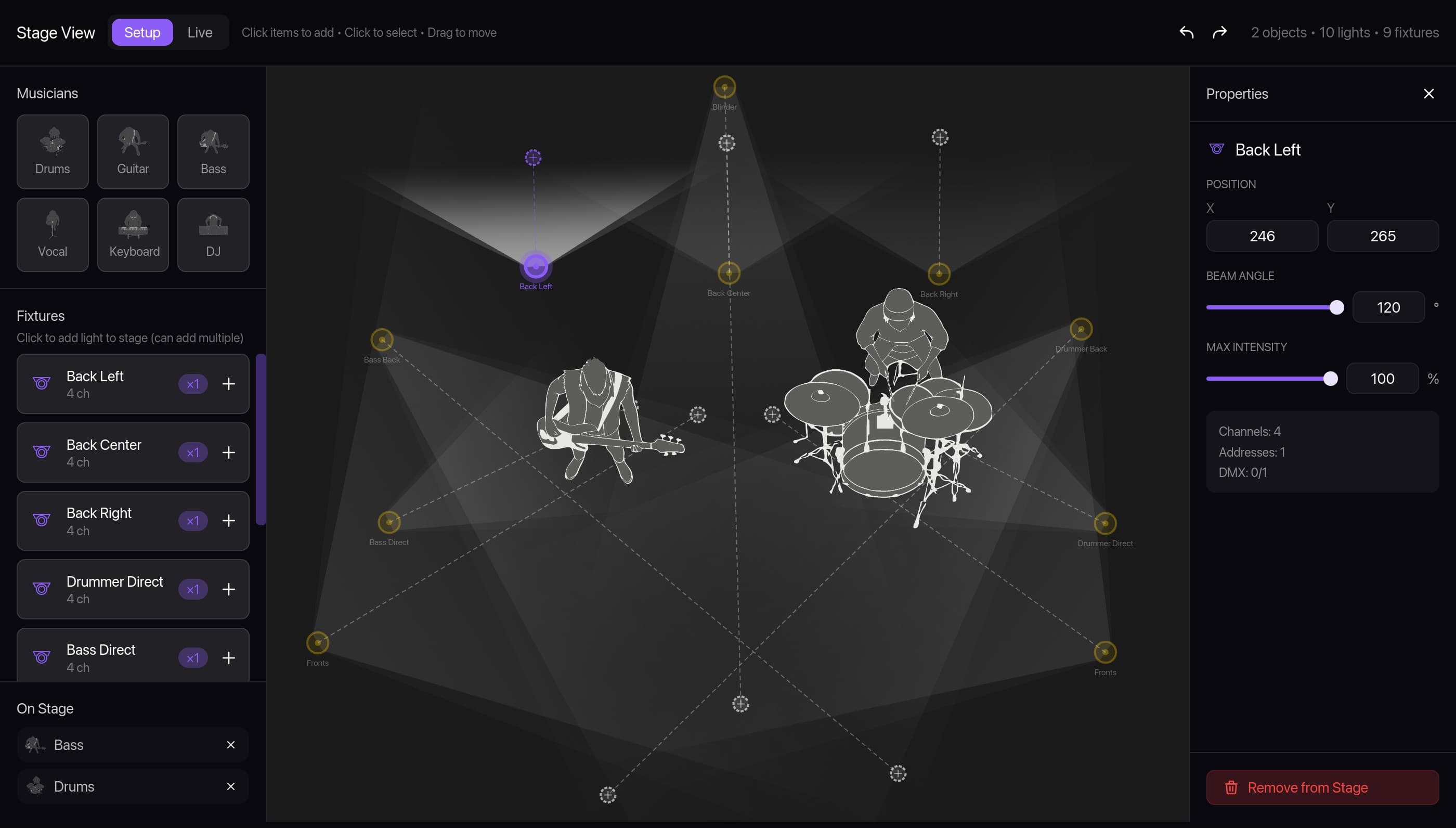
Put your band and your lights on a top-down stage, aim the beams, and switch to Live: every beam glows with the color its light is sending. Program at home, far from the rig.
Hover the numbers to explore
Talks to your gear.
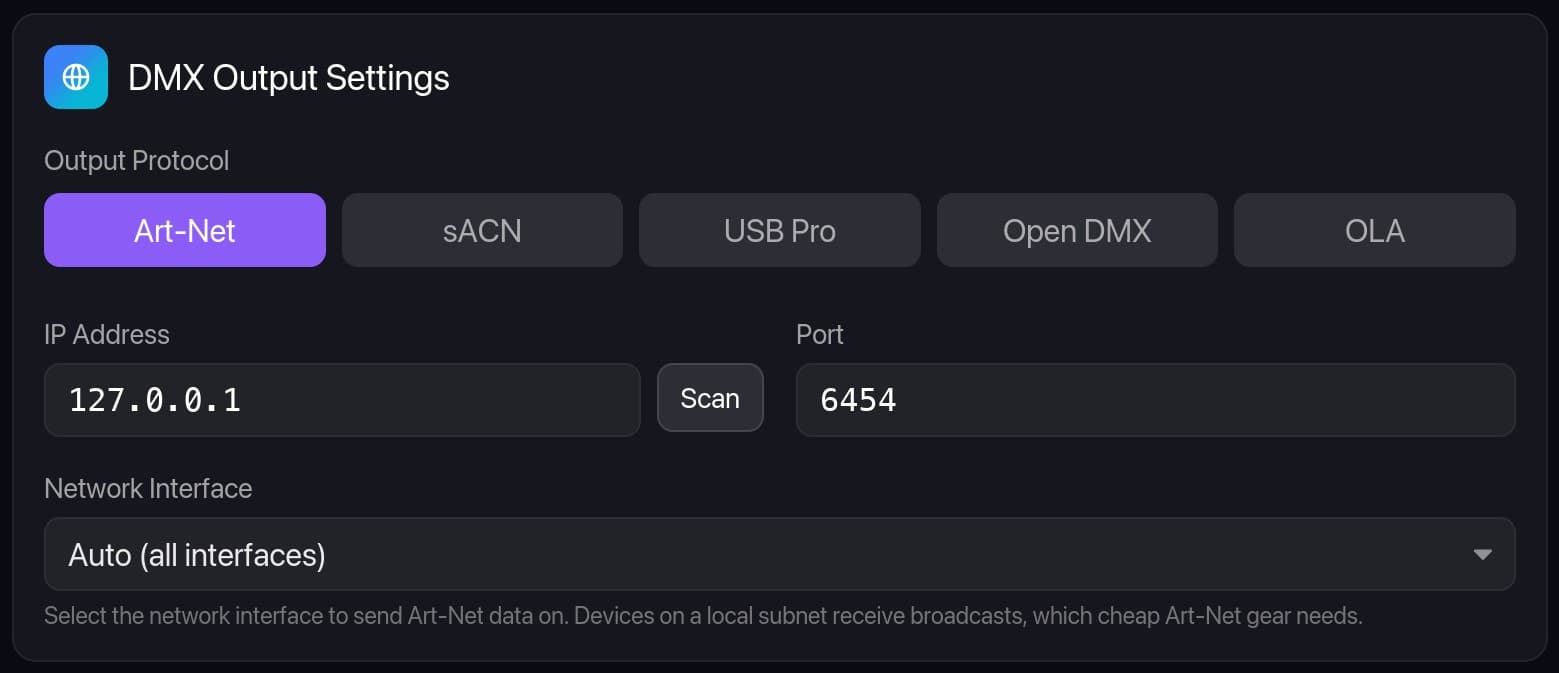
Network nodes and cheap USB dongles alike — built in, no extra software. If DMXRoll can't send it on your network, it tells you why.
Art-Net
NetworkAny Art-Net node. Scan finds the nodes on your network for you.
sACN
NetworkE1.31 streaming ACN, multicast or unicast, with priority.
USB Pro
USBEnttec DMX USB Pro and compatibles, auto-detected.
Open DMX
USBThe inexpensive FTDI “USB to DMX” cables. Plug and play.
OLA
FallbackExotic devices through the bundled Open Lighting Architecture.
Venues
PatchA different patch for every club. The show stays the same.
Your first show in six steps.
Create a project
One .dmxroll file holds the whole show — even the audio.
Choose your output
Art-Net, sACN, or plug in a USB DMX interface.
Add your lights
Pick a template and enter the address set on each light.
Import your song
DMXRoll draws the waveform and finds the tempo.
Paint the light
Drag colors along the tracks. Fades come for free.
Press Space
Music and lights start together. Then save with ⌘S.
Ready for your next show?
Free for everyone — pay what you want. For Macs with Apple silicon.
Good to know.
Is DMXRoll really free?
Yes. Every feature, no trial, no account — and that includes commercial use: use it for your band's paid gigs, a club or a production company. Pay what you want if it's useful to you, or nothing at all.
What do I need?
A Mac with Apple silicon (M1 or later) and a way to reach your lights: an Art-Net or sACN node on your network, or a USB DMX interface.
Which USB DMX interfaces work?
The Enttec DMX USB Pro and compatibles (such as DMXking ultraDMX), FTDI-based Open DMX cables, and unusual devices through the bundled OLA.
Can I run the show from MIDI?
Yes. Map Control Change or Program Change messages to next, previous, start, stop, rewind or a specific song — with a Learn button.
Is there a Windows version?
Not yet. It's next on the list.
Does DMXRoll support moving heads?
Not yet. Pan, tilt and the other moving-head features are on our roadmap and coming soon. Today DMXRoll drives color and intensity: PARs, LED bars, wash lights, blinders and more.
Does DMXRoll have a built-in fixture library?
Not yet — it comes with generic RGB, RGBW and single-color templates, and you can map any other light yourself in a minute, then save it as a template. As the DMXRoll community grows, we'll build an open marketplace where anyone can share the fixtures they've mapped and everyone else can download them.
Was DMXRoll built with AI?
Yes — of course we used an AI assistant to build it. We believe AI can democratize access to professional software: it makes it possible to build tools at a very high level without the financial barrier that usually keeps them out of reach. AI gets criticized for many things, and often fairly — but here, using it for the good of the community is our overriding goal.